
Guide
How to Install Arceus X Neo on Android, Without the Usual Errors
The install guide that covers the step everyone else skips: the official-app conflict, the overlay permission and the size check.
INDEX On this page
Most failed installs of this tool trace back to one skipped step, so this guide starts with it. Get the file from Arceus X Neo APK so you know it is the verified build, then work through the order below exactly.
Step zero: the official app
Arceus X Neo is a modified Roblox client carrying the same package identity as the official app. Android will refuse to install it while the official app exists, and no setting changes that. Uninstall the official Roblox app first. Your account, friends, Robux and progress are stored on Roblox's servers, so nothing you own is lost in the switch.
The install itself
Download the file and check its size against the homepage details table. Open it, allow installs from your browser when asked, and tap Install. Then launch, sign in, and grant the display-over-other-apps permission when the app requests it: the floating menu button is an overlay and Android will not show it without that grant.
First open checklist
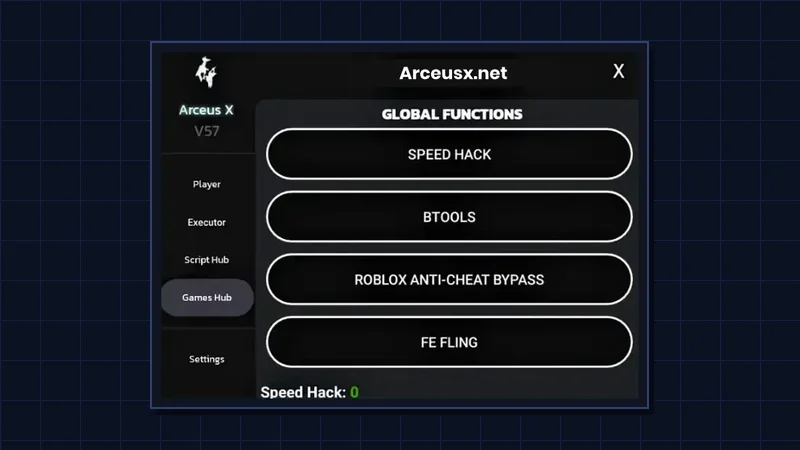
Complete the key flow (our key guide walks it screen by screen), open any experience, tap the floating button and move one hub slider to confirm the menu is live. If the button never appears, the overlay permission is the culprit in almost every case. Install it in the right order once, and Arceus X Neo stays out of your way from then on.
After the install: the five-minute proof run
Do not judge an install by the icon appearing on your home screen. Judge it by a proof run. Join a small, quiet experience, open the menu, and work one control from each layer: a hub slider, one ready-made script, and the executor console with a tiny test line. If all three respond, the install is genuinely complete, and any later problem belongs to a script or a game update rather than your setup. Readers who skip this check often meet our menu not showing fixes weeks later without knowing whether the menu ever worked in the first place.
The key step deserves the same discipline. Complete it immediately after the first launch, while the install order is fresh, and paste the key instead of typing it. Our step-by-step key system walkthrough covers the checkpoint order and the paste mistakes that make valid keys look broken. A key accepted on the first try also confirms your browser handled the flow cleanly, which matters again at every renewal.
Finally, protect the install you just made. Keep enough free storage for game data, let the client finish its first-run setup before force-closing anything, and resist stacking other mod tools beside it. When you are ready to repeat the process on a fresh phone, the download page holds the same verified file with its size listed for the check described above. A careful first install is the cheapest troubleshooting there is.
Keep this page bookmarked for the next phone or the next patch cycle. Installs of Arceus X Neo reward the same order every time, and Arceus X Neo itself rewards the users who set it up once, properly, instead of three times in a hurry.
Quick Answers
Why does the install fail with an app conflict?
The official Roblox app shares the package identity. It must be uninstalled first; your account data is online and safe.
Is the overlay permission safe to grant?
It is how the menu floats over the game, and it is the permission the tool genuinely needs. Grant it to this app only.
Can I switch back to official Roblox later?
Yes. Uninstall the modified client and reinstall the official app; sign in and everything is where you left it.